CCL Response Air Monitoring Viewer Help Page
This tool is designed to help you understand and visualize air quality data in your area. Click the following links for instructions on how to use the viewer:
· How to Use the Map: Explore air quality and meteorological data across different locations with our interactive map feature.
· How to Use the Graphs: Visualize air quality trends over time with our graphing tools, which also allow you to download data for different timeframes.
· Guide for Additional Map Icons: Learn about the different map icons, their functions, and how to use them to access additional information.
· Troubleshooting: Site not displaying properly? Browsers cache images, which can cause issues when the site is updated. Learn how to clear your cache in Chrome or Edge, then refresh the page.
· About the Data: Gain insights into how the data should be interpreted and utilized.
How to Use the Map
The icons on the map are clickable:
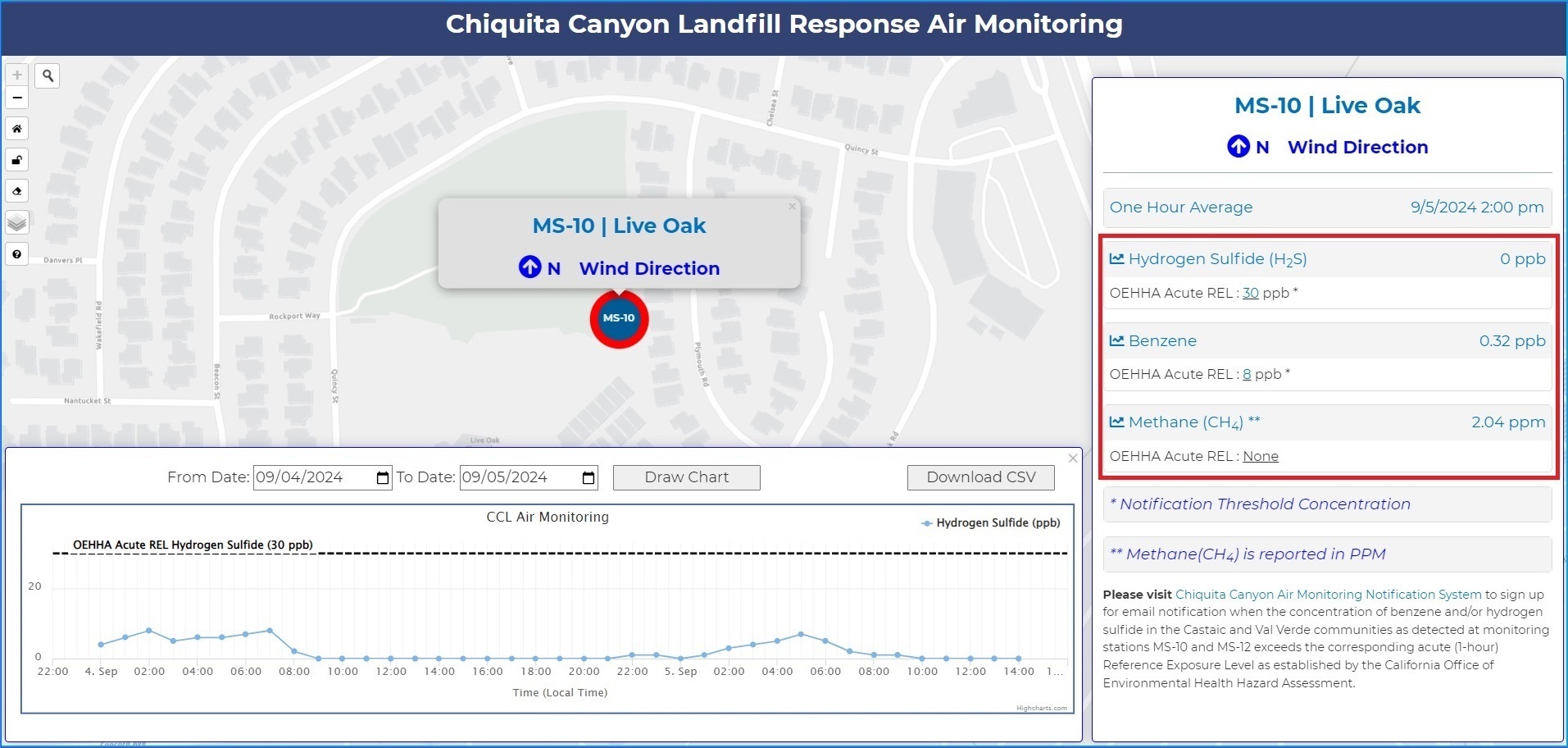
· On the map, click on a monitoring station to display current one-hour average concentrations for measured compounds and predominant wind direction.

· On the right information pane, click on the desired compound of interest to view most recent daily graphed measurements.
How to Use the Graphs
The measurement graphs are interactive and can be adjusted:
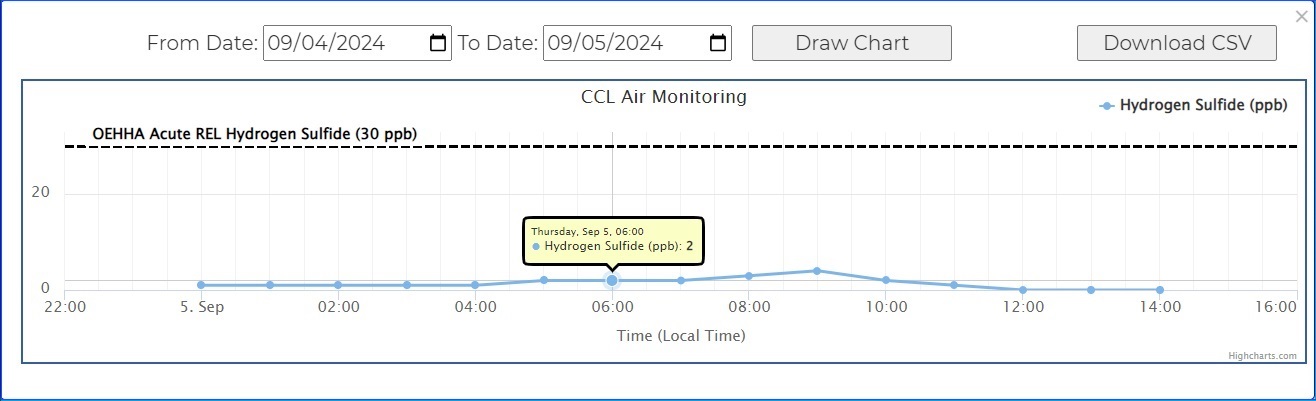
· Using your cursor to hover over the graph will provide details on when a measurement was recorded and measurement value.
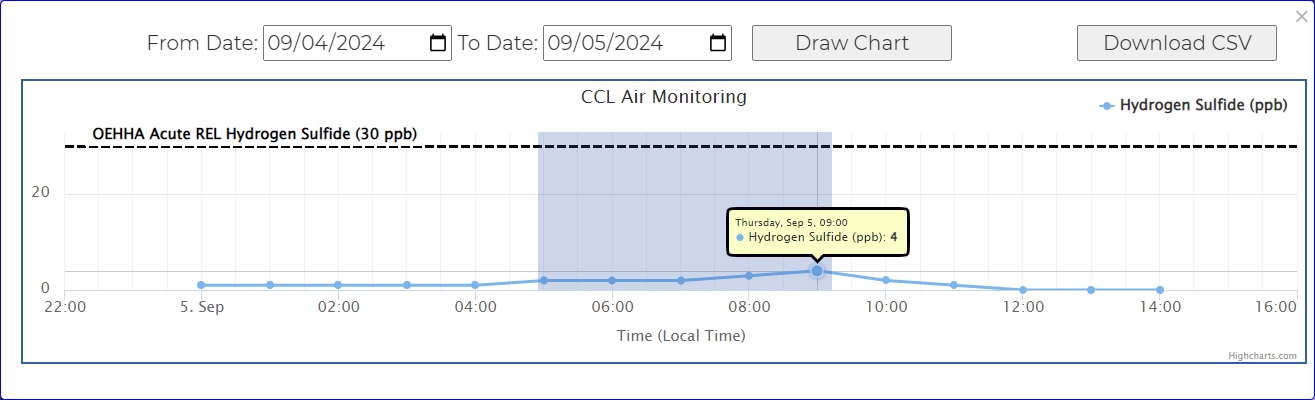
· Using your mouse, hover over the graph, then left-click and drag the shaded area to the left or right to zoom in to that time period. Click on the ‘Reset Zoom’ button on the chart to return to original view.
· Click the ‘Download CSV’ button in the right corner of the graph to download from selected timeframe in .csv format.
· The date ranges on the graphs can be adjusted to suit user’s needs. To change the date range, select the calendar icons in the ‘From Date’ and ‘To Date’ to desired time and then hit the ‘Draw Chart’ button to update the graph.
Guide for Additional Map Icons
Please see table below for descriptions of each map icon.
|
Icon |
Function |
How to Use |
|
|
Location Search |
Click this icon to search for places and addresses, then select place of interest to place icon on the map. |
|
|
Return to Home Screen |
Click this icon to return the zoom to original standard view. |
|
|
Open/Close Info Pane |
Click this icon to open or close the side information pane. |
|
|
Clear Current Information |
Click this icon to clear the current map and information pane and return to main view. |
|
|
Select Imagery/Basemap Layer |
Hover over this icon and select desired map image type. |


Troubleshooting
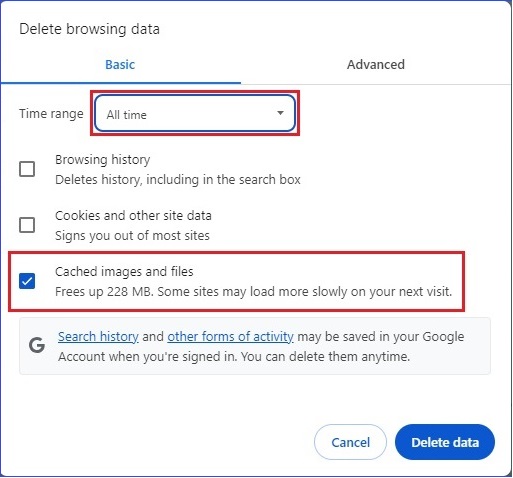
Clearing the browser cache in Google Chrome:
· In Chrome, click the three dots in the upper right corner of the window. Select "Delete browsing data" in the menu.
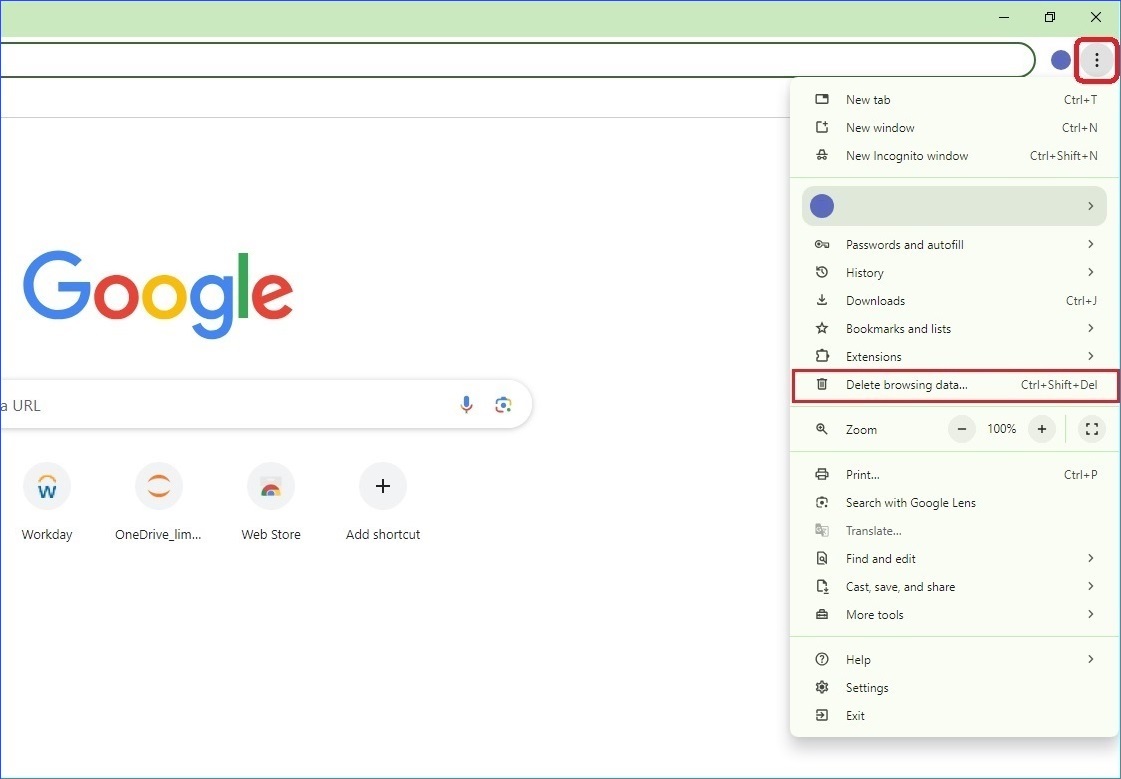
· Change the time-period to "All time" and only check "Cached images and files" and "Delete data."
Clearing the browser cache in Microsoft Edge:
· In Edge, click the three dots in the upper right corner of the window. Select "Settings" in the menu.
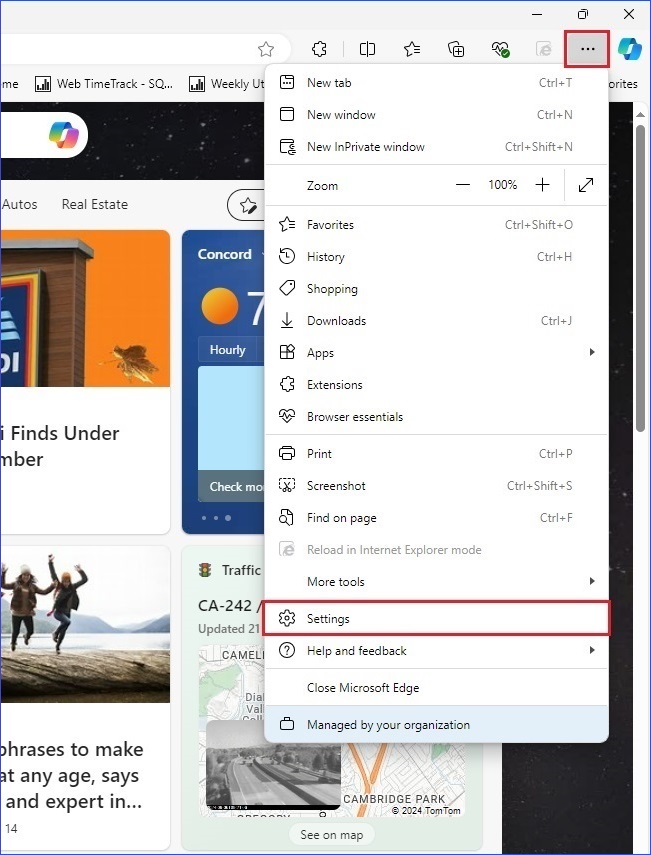
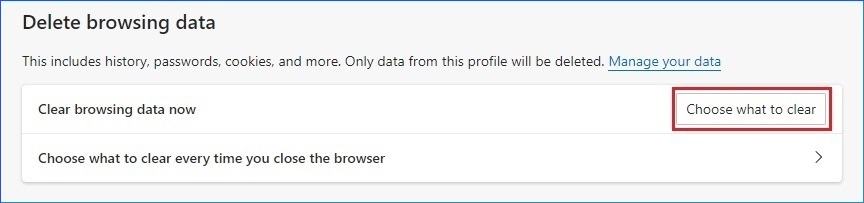
· Select "Privacy, search, and services" on the left, and scroll down to the "Delete browsing data" section.

· Click "Choose what to clear".
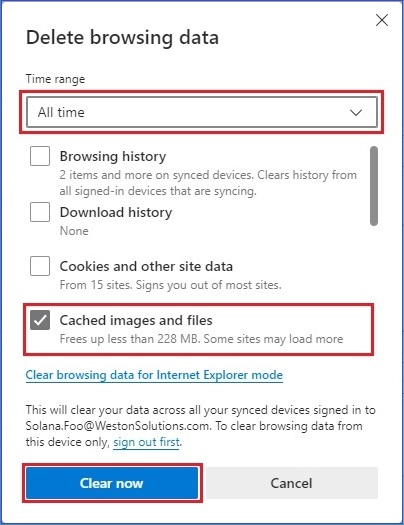
· Change the Time range to "All time" and then only select "Cached images and files" and press "Clear now".
Disclaimer: Data directly reported through the automatic real time monitors have not been validated extensively and is therefore subject to change. The results from these monitors alone cannot be used to infer health effects, but they do provide a general sense of how much of the measured pollutants are in the community at a given time. Use of this air quality monitoring data is at the user's discretion and should be done with caution.
Data, information, and maps from this community air monitoring network only provide air quality information at the time of the measurements and may not adequately represent air quality conditions experienced over longer time periods. Measurements from continuous instruments may be disrupted for periodic maintenance and quality checks, as well as unforeseen power failures and instrument malfunctions. Local environmental conditions (e.g. meteorology) can vary widely across the region and may also have a substantial impact on the air quality measurements.
The provider of this data offers no guarantee, either
expressed or implied, as to the accuracy, reliability or completeness of data
furnished via the website. Further, the provider of this data shall not be
liable under any circumstances for any direct, special, incidental or
consequential damages with respect to any claim by any user or third party as a
result of, or arising from, the use of this data.